Microsoft launched WPF Application Framework,its alpha could be downloaded from codeplex site, by following the link below:
WPF Application Framework (WAF)
This application framework will help you create the applications based on layered architecture and the Model-View-ViewModel (aka MVVM, M-V-VM, PresentationModel) patterns.
.NET Framework 3.5 SP1 is a prerequisite for this.
Thursday, October 01, 2009


Tuesday, June 02, 2009
Bing - Because Its Not Google
Microsoft has launched its new search engine which will replace live.com.


Monday, March 02, 2009
MCP Exams Scheduled for Discontinuation from 31-Mar-2009
Microsoft is committed to a program of Microsoft Certifications that are relevant, valued, and respected indicators of IT professional and developer technology skills. To fulfill this commitment, the Microsoft Certification team continually monitors current industry trends and evolves accordingly, developing new exams and discontinuing others to ensure that certification requirements keep pace with technology enhancements.
In accordance with this commitment, Microsoft Learning will retire 12 exams on March 31, 2009. These exams focus on technologies no longer included in Microsoft mainstream support, and are requirements for the Microsoft Certified Application Developer (MCAD), Microsoft Certified Solution Developer (MCSD), and Microsoft Certified Database Administrator (MCDBA) certifications. To complete these credentials, you must pass all required exams before they retire.
To know about the following:
• Developer exams that retire on March 31, 2009
• Microsoft SQL Server exams that retire on March 31, 2009
• Frequently asked questions
Read
MCP Exams being retired from 31-Mar-2009
In accordance with this commitment, Microsoft Learning will retire 12 exams on March 31, 2009. These exams focus on technologies no longer included in Microsoft mainstream support, and are requirements for the Microsoft Certified Application Developer (MCAD), Microsoft Certified Solution Developer (MCSD), and Microsoft Certified Database Administrator (MCDBA) certifications. To complete these credentials, you must pass all required exams before they retire.
To know about the following:
• Developer exams that retire on March 31, 2009
• Microsoft SQL Server exams that retire on March 31, 2009
• Frequently asked questions
Read
MCP Exams being retired from 31-Mar-2009
Thursday, January 01, 2009
Monday, November 17, 2008
Windows Azure Tools for Microsoft Visual Studio 2008 SP1
Microsoft has recently launched the development tool support for Windows Cloud Computing - Windows Azure.
Windows Azure Tools for Microsoft Visual Studio; extend Visual Studio to enable the creation, building, debugging, running and packaging of scalable services on Windows Azure.
Windows Azure Tools for Microsoft Visual Studio includes:
*C# and VB Project templates for building Cloud Services
*Integration with the Development Fabric and Development Storage services
*Debugging Cloud Service Roles running in the Development Fabric
*Building and packaging of Cloud Service Packages
*Browsing to the Azure Services Developer Portal
*Role configuration
*SSL Certificate selection
Download here:
Windows Azure Tools for Microsoft Visual Studio
Windows Azure Tools for Microsoft Visual Studio; extend Visual Studio to enable the creation, building, debugging, running and packaging of scalable services on Windows Azure.
Windows Azure Tools for Microsoft Visual Studio includes:
*C# and VB Project templates for building Cloud Services
*Integration with the Development Fabric and Development Storage services
*Debugging Cloud Service Roles running in the Development Fabric
*Building and packaging of Cloud Service Packages
*Browsing to the Azure Services Developer Portal
*Role configuration
*SSL Certificate selection
Download here:
Windows Azure Tools for Microsoft Visual Studio
Sunday, November 02, 2008
Resolution - Silverlight Initialize Error 2104
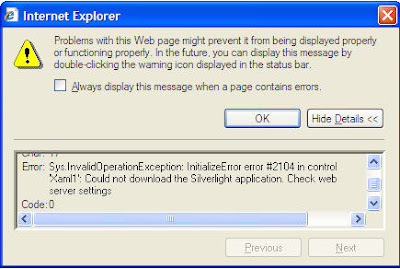
If you are working with Sliverlight application (VS2008 and Silverlight on WindowsXP) and getting the error# 2104 as shown in the figure below, then here are some of the trick which will work for you to resolve the issue:
Before trying any major changes in IIS(inetmgr), go to the solution explorer and open ClientBin folder, in which you will see a file created having name of your application and suffixed with a .xap extension, eg- SilverlightApplication.xap.
Now go to your aspx page which is calling the Page.xaml, in most of the cases if unchanged it will be SilverlightAppliacationTestPage.aspx, open this page (Source view) and you will find that source element is set to:
ClientBin/SilverlightApplication.page
If you observe here the file referred is filename.page which is a default setting, whereas the ClientBin folder have filename.xap, so change the extension of file for source element to .xap
It may help you to get rid of the error. If not...
Lets try some IIS setting changes:
1. Content Expiration Setting
By defalut its not enabled, so enable this:
Step-1: Right-click your Web Site, select Properties from the context menu.
Step-2:Go to HTTP Headers tab and click "Enable Content Expiration".
Step-3:Set the content to expire after 1 minute.
2. Let IIS know about MIME Types and File Extensions
To enable a Silverlight application under your IIS, you need to register some MIME types and file extensions so that the browser on the client's system can load the correct handler.
Step-1: Right-click your Web Site, select Properties from the context menu.
Step-2:Go to HTTP Headers tab and click on "File Types" under Mime Map section.
You need to add the following types:
------------------------------------------
Extension ----- MIME Type
------------------------------------------
.xap ----------- application/octet-stream
.xaml ---------- application/xaml+xml
------------------------------------------
3. Change Execute permissions to Scripts Only.
Step-1: Right-click your Web Site and select Properties from the context menu.
Step-2:Select the Directory tab and change "Execute Permissions" to Script only.
Once these settings are done, retry running your app, it will work for you.

Before trying any major changes in IIS(inetmgr), go to the solution explorer and open ClientBin folder, in which you will see a file created having name of your application and suffixed with a .xap extension, eg- SilverlightApplication.xap.
Now go to your aspx page which is calling the Page.xaml, in most of the cases if unchanged it will be SilverlightAppliacationTestPage.aspx, open this page (Source view) and you will find that source element is set to:
ClientBin/SilverlightApplication.page
If you observe here the file referred is filename.page which is a default setting, whereas the ClientBin folder have filename.xap, so change the extension of file for source element to .xap
It may help you to get rid of the error. If not...
Lets try some IIS setting changes:
1. Content Expiration Setting
By defalut its not enabled, so enable this:
Step-1: Right-click your Web Site, select Properties from the context menu.
Step-2:Go to HTTP Headers tab and click "Enable Content Expiration".
Step-3:Set the content to expire after 1 minute.
2. Let IIS know about MIME Types and File Extensions
To enable a Silverlight application under your IIS, you need to register some MIME types and file extensions so that the browser on the client's system can load the correct handler.
Step-1: Right-click your Web Site, select Properties from the context menu.
Step-2:Go to HTTP Headers tab and click on "File Types" under Mime Map section.
You need to add the following types:
------------------------------------------
Extension ----- MIME Type
------------------------------------------
.xap ----------- application/octet-stream
.xaml ---------- application/xaml+xml
------------------------------------------
3. Change Execute permissions to Scripts Only.
Step-1: Right-click your Web Site and select Properties from the context menu.
Step-2:Select the Directory tab and change "Execute Permissions" to Script only.
Once these settings are done, retry running your app, it will work for you.
Subscribe to:
Posts (Atom)