1.Build Applications which can run on and support Multiple versions of the .NET Framework
2.LINQ support to work with Data in a Unified and Integrated way
3.Support to Build Office 2003/2007 based Applications.
4.Amazing Unit Testing support on right click in the code view and dedicated Test Project Template.
5.Ground level support for Windows Vista Applications
6.SilverLight can be done here, which seems to be the latest WEB User Interface Technique
7.Facinating enough to have dedicated Project Templates for WPF, WCF and Workflow
Sunday, November 25, 2007


Wednesday, November 21, 2007
How to Un-Install the previous Orcas CTPs, Betas before installing VS 2008 RTM
You may face some issues while installing VS2008 over the previously installed Orcas CTPs or Beta editions.
You need to un-install all the previous versions before you start work with the VS 2008 RTM.
Let's have look at the steps availabe on the MSDN
You need to un-install all the previous versions before you start work with the VS 2008 RTM.
Let's have look at the steps availabe on the MSDN
Visual Studio 2008 RTM is Available now
VS 2008 RTM is availabe to download for MSDN Subscribers
Get VS 2008
Get VS 2008
Sunday, September 30, 2007
Orcas New Feature - Code Editor Intellisense Enhancement
If you recall the way we use intellisense while coding is just to press .(prriod) after the object name and we see an entire list of methods and properties associated with that object. As shown in the figure below.

Even though the Intellisense has been a great feature for more than a decade by now, but the disadvantage of this is that it hides the code whenever the Intellisense popup comes over, and sometimes if we need to look at the code behind the pop-up we need to press ESC key and the reopen it.
The Visual Studio 2008 Code Editor comes with this long lived issue, and you can just make the Intellisense pop-up Transparent by holding the CTRL key and look at the code which was covered by the intellisense pop-up, and release the CTRL when you are done.
See the following figure which shows the enhanced Code Editor with new Intellisense feature, which becomes transparent if CTRL key is pressed.

Release the CTRL key to bring it back to the normal. Isn't it a cool feature.

Even though the Intellisense has been a great feature for more than a decade by now, but the disadvantage of this is that it hides the code whenever the Intellisense popup comes over, and sometimes if we need to look at the code behind the pop-up we need to press ESC key and the reopen it.
The Visual Studio 2008 Code Editor comes with this long lived issue, and you can just make the Intellisense pop-up Transparent by holding the CTRL key and look at the code which was covered by the intellisense pop-up, and release the CTRL when you are done.
See the following figure which shows the enhanced Code Editor with new Intellisense feature, which becomes transparent if CTRL key is pressed.

Release the CTRL key to bring it back to the normal. Isn't it a cool feature.
Wednesday, September 19, 2007
Orcas New Feature - Split View (Web Applications)
Visual Studio Developers spend a lot of time in switching from Desgin view to Source view while developing an application, as they need to see what they are developing will appear in what manner.
With the release of Orcas/Visual Studio 2008 this problem is going to resolved, as Orcas ASP .NET Web Application Project Template comes up with a brand new feature called Split (split view).
This new Split functionality will sit in between of Design and Source view at the bottom of the Visual Studio IDE while developing a Web Application. Please referto the Figure shown below.

If you look at the Figure shown above, you will notice that the developers can look at the code and the design simultaneously.
Split view does not reflect the changes along, as we type the code in the code editor part. If it will do so the development speed will be very slow as the process of reflecting code change effect needs some time to be applied/reflected in the design view.
To serve this purpose Orcas have an inbuilt mechanism to allow you keep on playing with the code part, and then a pop-up will prompt you to Synchronize the code changes into the Design View, as shown in the Figure below.

With the release of Orcas/Visual Studio 2008 this problem is going to resolved, as Orcas ASP .NET Web Application Project Template comes up with a brand new feature called Split (split view).
This new Split functionality will sit in between of Design and Source view at the bottom of the Visual Studio IDE while developing a Web Application. Please referto the Figure shown below.

If you look at the Figure shown above, you will notice that the developers can look at the code and the design simultaneously.
Split view does not reflect the changes along, as we type the code in the code editor part. If it will do so the development speed will be very slow as the process of reflecting code change effect needs some time to be applied/reflected in the design view.
To serve this purpose Orcas have an inbuilt mechanism to allow you keep on playing with the code part, and then a pop-up will prompt you to Synchronize the code changes into the Design View, as shown in the Figure below.

Friday, September 14, 2007
VS 2008 - A solution to long lived coupling between Visual Studio and .NET Framework
If you recall previous releases of .NET Framework which had a dedicated Visual Studio.NET linked to that particular .NET Framework version.
Lets see, all of them again:-
Microsoft .NET Framework | Visual Studio .NET
--------------------------------------------------------------
1- .NET 1.0 ---------------------- Visual Studio 2002
2- .NET 1.1 ---------------------- Visual Studio 2003
3- .NET 2.0 ---------------------- Visual Studio 2005
4. .NET 3.0 ---------------------- VS 2005 + VS 2005 extensions for .NET 3.0
5. .NET 3.5 ---------------------- Visual Studio 2008
This coupling in between has just put the entire Microsoft .NET aspirants to shift their focus to different IDEs and interfaces time to time for almost six years by now.
Visual Studio 2008(code named Orcas) is designed with a vision to support any .NET Framework version application in its single IDE, I.e, you don't need multiple copies of VS .NET to support different versions of .NET Framework (as shown above). Hence the Visual Studio 2008 reduces or removes the coupling between .NET Framework and Visual Studio .NET, and having just one copy of Visual Studio 2008 will cater the various .NET Framework versions.
The Visual Studio 2008 Projects Templates and how they support to .NET Framework versions is shown in the figure here:
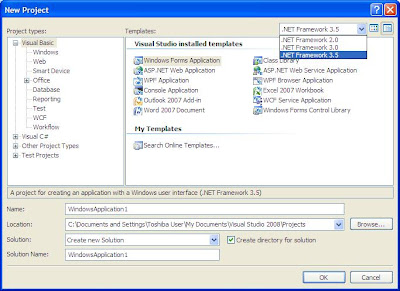
You can see the vast range of Project Templates VS 2008 supports. Beisides on the top right corner of the figure shown just above, you can see while choosing a project template, it also allows you to choose your desired .NET Framework version from the dropdown list.
Hence, Visual Studio 2008 and its support for multiple .NET version support minimizes the maintenance and side-by-side issues which we all were facing due to the coupling betwenn VS.NET and their respective .NET Framework versions.
Lets see, all of them again:-
Microsoft .NET Framework | Visual Studio .NET
--------------------------------------------------------------
1- .NET 1.0 ---------------------- Visual Studio 2002
2- .NET 1.1 ---------------------- Visual Studio 2003
3- .NET 2.0 ---------------------- Visual Studio 2005
4. .NET 3.0 ---------------------- VS 2005 + VS 2005 extensions for .NET 3.0
5. .NET 3.5 ---------------------- Visual Studio 2008
This coupling in between has just put the entire Microsoft .NET aspirants to shift their focus to different IDEs and interfaces time to time for almost six years by now.
Visual Studio 2008(code named Orcas) is designed with a vision to support any .NET Framework version application in its single IDE, I.e, you don't need multiple copies of VS .NET to support different versions of .NET Framework (as shown above). Hence the Visual Studio 2008 reduces or removes the coupling between .NET Framework and Visual Studio .NET, and having just one copy of Visual Studio 2008 will cater the various .NET Framework versions.
The Visual Studio 2008 Projects Templates and how they support to .NET Framework versions is shown in the figure here:

You can see the vast range of Project Templates VS 2008 supports. Beisides on the top right corner of the figure shown just above, you can see while choosing a project template, it also allows you to choose your desired .NET Framework version from the dropdown list.
Hence, Visual Studio 2008 and its support for multiple .NET version support minimizes the maintenance and side-by-side issues which we all were facing due to the coupling betwenn VS.NET and their respective .NET Framework versions.
Subscribe to:
Posts (Atom)