Thursday, January 01, 2009


Monday, November 17, 2008
Windows Azure Tools for Microsoft Visual Studio 2008 SP1
Microsoft has recently launched the development tool support for Windows Cloud Computing - Windows Azure.
Windows Azure Tools for Microsoft Visual Studio; extend Visual Studio to enable the creation, building, debugging, running and packaging of scalable services on Windows Azure.
Windows Azure Tools for Microsoft Visual Studio includes:
*C# and VB Project templates for building Cloud Services
*Integration with the Development Fabric and Development Storage services
*Debugging Cloud Service Roles running in the Development Fabric
*Building and packaging of Cloud Service Packages
*Browsing to the Azure Services Developer Portal
*Role configuration
*SSL Certificate selection
Download here:
Windows Azure Tools for Microsoft Visual Studio
Windows Azure Tools for Microsoft Visual Studio; extend Visual Studio to enable the creation, building, debugging, running and packaging of scalable services on Windows Azure.
Windows Azure Tools for Microsoft Visual Studio includes:
*C# and VB Project templates for building Cloud Services
*Integration with the Development Fabric and Development Storage services
*Debugging Cloud Service Roles running in the Development Fabric
*Building and packaging of Cloud Service Packages
*Browsing to the Azure Services Developer Portal
*Role configuration
*SSL Certificate selection
Download here:
Windows Azure Tools for Microsoft Visual Studio
Sunday, November 02, 2008
Resolution - Silverlight Initialize Error 2104
If you are working with Sliverlight application (VS2008 and Silverlight on WindowsXP) and getting the error# 2104 as shown in the figure below, then here are some of the trick which will work for you to resolve the issue:
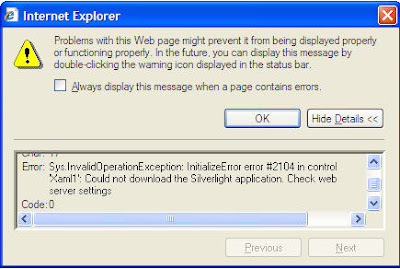
Before trying any major changes in IIS(inetmgr), go to the solution explorer and open ClientBin folder, in which you will see a file created having name of your application and suffixed with a .xap extension, eg- SilverlightApplication.xap.
Now go to your aspx page which is calling the Page.xaml, in most of the cases if unchanged it will be SilverlightAppliacationTestPage.aspx, open this page (Source view) and you will find that source element is set to:
ClientBin/SilverlightApplication.page
If you observe here the file referred is filename.page which is a default setting, whereas the ClientBin folder have filename.xap, so change the extension of file for source element to .xap
It may help you to get rid of the error. If not...
Lets try some IIS setting changes:
1. Content Expiration Setting
By defalut its not enabled, so enable this:
Step-1: Right-click your Web Site, select Properties from the context menu.
Step-2:Go to HTTP Headers tab and click "Enable Content Expiration".
Step-3:Set the content to expire after 1 minute.
2. Let IIS know about MIME Types and File Extensions
To enable a Silverlight application under your IIS, you need to register some MIME types and file extensions so that the browser on the client's system can load the correct handler.
Step-1: Right-click your Web Site, select Properties from the context menu.
Step-2:Go to HTTP Headers tab and click on "File Types" under Mime Map section.
You need to add the following types:
------------------------------------------
Extension ----- MIME Type
------------------------------------------
.xap ----------- application/octet-stream
.xaml ---------- application/xaml+xml
------------------------------------------
3. Change Execute permissions to Scripts Only.
Step-1: Right-click your Web Site and select Properties from the context menu.
Step-2:Select the Directory tab and change "Execute Permissions" to Script only.
Once these settings are done, retry running your app, it will work for you.

Before trying any major changes in IIS(inetmgr), go to the solution explorer and open ClientBin folder, in which you will see a file created having name of your application and suffixed with a .xap extension, eg- SilverlightApplication.xap.
Now go to your aspx page which is calling the Page.xaml, in most of the cases if unchanged it will be SilverlightAppliacationTestPage.aspx, open this page (Source view) and you will find that source element is set to:
ClientBin/SilverlightApplication.page
If you observe here the file referred is filename.page which is a default setting, whereas the ClientBin folder have filename.xap, so change the extension of file for source element to .xap
It may help you to get rid of the error. If not...
Lets try some IIS setting changes:
1. Content Expiration Setting
By defalut its not enabled, so enable this:
Step-1: Right-click your Web Site, select Properties from the context menu.
Step-2:Go to HTTP Headers tab and click "Enable Content Expiration".
Step-3:Set the content to expire after 1 minute.
2. Let IIS know about MIME Types and File Extensions
To enable a Silverlight application under your IIS, you need to register some MIME types and file extensions so that the browser on the client's system can load the correct handler.
Step-1: Right-click your Web Site, select Properties from the context menu.
Step-2:Go to HTTP Headers tab and click on "File Types" under Mime Map section.
You need to add the following types:
------------------------------------------
Extension ----- MIME Type
------------------------------------------
.xap ----------- application/octet-stream
.xaml ---------- application/xaml+xml
------------------------------------------
3. Change Execute permissions to Scripts Only.
Step-1: Right-click your Web Site and select Properties from the context menu.
Step-2:Select the Directory tab and change "Execute Permissions" to Script only.
Once these settings are done, retry running your app, it will work for you.
Thursday, October 30, 2008
Resolution - Silverlight designer page laoding exception
If you have installed Microsoft Silverlight Tools Beta 2 for Visual Studio 2008, then you might be facing probelm while designer page is loading and it might be throwing an exception as well.
The resolution to this is to un-install the Silverlight Tools Beta-2, and install the newly released 10/20/2008 Add-on for Visual Studio 2008 SP1 for developing Silverlight 2 application.
Silverlight Tools for VS 2008
Once this update is done, you will be able to find clean designer slate, and there will be no exception/errors/warnings while Silverlight page is loading in the IDE.
The resolution to this is to un-install the Silverlight Tools Beta-2, and install the newly released 10/20/2008 Add-on for Visual Studio 2008 SP1 for developing Silverlight 2 application.
Silverlight Tools for VS 2008
Once this update is done, you will be able to find clean designer slate, and there will be no exception/errors/warnings while Silverlight page is loading in the IDE.
Tuesday, October 28, 2008
Pre-Release - VS 2010 and .NET 4.0 CTP available
Microsoft published the 1st CTP of VS201 and .NET 4.0 on 26-Oct-2008.
As of now its availavle in the form of virtual image only,follow the link below to download.
Download Vs2010 and .NET 4.0 CTP
Before you begin with download, lets have look at:
System Requirements
* Supported Operating Systems: Windows Server 2003; Windows Server 2008; Windows Vista; Windows XP
* Minimum 75 GB available HDD space
* The host computer must have a minimum of 2 GB RAM, with 1 GB allocated to the host operating system and 1 GB allocated to the VPC.
* We recommend that the host computer CPU be at least a Core Duo 2 GHz processor.
Service Pack 1 of Microsoft Virtual PC 2007 is required to access the VPC.
As of now its availavle in the form of virtual image only,follow the link below to download.
Download Vs2010 and .NET 4.0 CTP
Before you begin with download, lets have look at:
System Requirements
* Supported Operating Systems: Windows Server 2003; Windows Server 2008; Windows Vista; Windows XP
* Minimum 75 GB available HDD space
* The host computer must have a minimum of 2 GB RAM, with 1 GB allocated to the host operating system and 1 GB allocated to the VPC.
* We recommend that the host computer CPU be at least a Core Duo 2 GHz processor.
Service Pack 1 of Microsoft Virtual PC 2007 is required to access the VPC.
Saturday, October 11, 2008
Microsoft Web Platform Installer Beta
The Web Platform Installer Beta (Web PI) provides a single, free package for installing and configuring Microsoft's entire Web Platform, including IIS7, Visual Web Developer 2008 Express Edition, SQL Server 2008 Express Edition and the .NET Framework. Using the Web Platform Installer’s simple user interface, you can select specific components or install the entire Microsoft Web Platform onto your computer. To help you stay up-to-date with product releases, the Web Platform Installer always contains the most current versions and new additions to the Microsoft Web Platform.
Click here for Microsoft Web Platform Instller
Click here for Microsoft Web Platform Instller
Subscribe to:
Posts (Atom)