Saturday, October 27, 2012

Nuget - Visual Studio Package


NuGet Package Manager Download URL

Problem- Many times during development it become tedious to look for right assemblies to be added to the project's references. For example, Entity Framework, Enterprise Library blocks, JSON etc.
Due to the nature of application's dependency on right assemblies; developers spend a good amount of time in searching the right installer URL of the utility packages, or look for assemblies in the machine and then reference those.


Solution- NuGet is an open source based developement focused system for implementing packages in the .NET platform based applications. NuGet is designed to simplify the process of bringing/adding Microsoft (Enterprise Blocks etc.) and various third party(Ninjectm JSON etc.) libraries into a .NET application during development.

Once you have installed Nuget, you no longer need to worry about looking for assembly references for various frameworks, blocks etc. for example, JSON, Enterprise Library, Entity Framework etc.

You just need to right-click on the References and click on Manage NuGet Package as shown in the figure below:


This will open a new window, in which you can search your desired package and install it as shown in the figure below:


Now if you will look under thre References, you will notice that assembly references are added through NuGet. NuGet helped you save the time and effrot to add existing assemblies or install and then add in case it was new.


Now, you have got the assemblies your application requires, you can begin with code now to invoke the functionality from added assemblies.

It's productive isn't it?
 

Monday, October 01, 2012

Logging Application Block (Enterprise Library 5.0)


EnterpriseLibrary version- 5.0 Download url
Language used in code sample below - C#

Logging is a very important feature for many applications and serves the very critical purpose in a software application's life. Logging enables to look for monitoring data and also document what is happening in-side and out-side of the application; also known as auditing.

Most common places to log such activities, information and data are:
1- Flat files (.log/.txt)
2- Event logs (Windows event viewer) and
3- Database.

In the absence of logging application block, the logging code needs to be repeated in the application at many places. This code will also include .NET library and function calls based on type of place you want to log the information. Hence, logging application block simply de-couples the logging functionality from the application code.

Configuring the Logging Application Block

1- Open your Visual Studio project, if not already available, add an app.config file
2- Open Microsoft Enterprise Library console.
3- In the Blocks menu, choose "Add Logging Settings" option, this will appear as shown here:


 4- Based on your requirements add listners (File, Event, Database etc.).


 5- Describe "Event Log" target listner


6- Describe "Flat File" trace listner


7- Describe "Message Formatter"


Now save this configuraton by clicking File--> Save option. and choose your added .config file,
this will be modified and will appear as shown here.
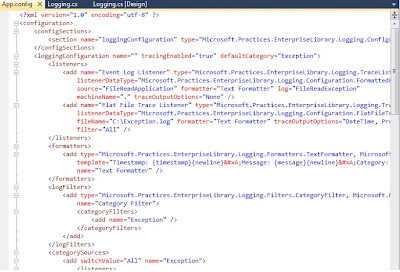


Now you can add the code to enable the Logging from your application into the defined "Target Trace Listners" in our case "Flat File" and "Event Log".

I have designed a Windows Form application which reads a file, from provided path location, if file is found it loads the cntent into the text box, else in case of an exception "FileNotFoundException" the error info is logged into the Log file (c:\exception.log) and Event Log.


C# Code will look like this
 
using Microsoft.Practices.EnterpriseLibrary.Logging;
 
private void btnReadFile_Click(object sender, EventArgs e)
{
     StreamReader sr = null;

     try
      {
          sr = new StreamReader(txtFilePath.Text);

          txtFileContent.Text = sr.ReadToEnd();
     }
     catch (FileNotFoundException)
     {
         txtFileContent.Text="Exception details logged log file  
                                and Event Viewer";               

         LogEntry objLog = new LogEntry();

         objLog.Message = "Please provide valid Filename";
         objLog.Categories.Add("File Read Error");

         Logger.Write(objLog);               
     }

     finally
      {
         if (sr != null)
          {
            sr.Close();
         }
     }    
}
 
 
Now if you open the C:\Exception.log you will see:
 
----------------------------------------
Timestamp: 10/1/2012 7:35:03 PM
Message: There is no explicit mapping for the categories 'File Read Error'. The log entry was:
Timestamp: 10/1/2012 7:35:03 PM
Message: Please provide valid Filename
Category: File Read Error
Priority: -1
EventId: 0
Severity: Information
Title:
Machine: VIDYAVRAT-PC
App Domain: LoggingApplicationBlock.vshost.exe
ProcessId: 9164
Process Name: C:\VidyaVrat\Microsoft .NET\Application Code POCs\EnterpriseLibrary-Application Blocks\LoggingApplicationBlock\LoggingApplicationBlock\bin\Debug\LoggingApplicationBlock.vshost.exe
Thread Name:
Win32 ThreadId:13588
Extended Properties:
Category:
Priority: -1
EventId: 6352
Severity: Error
Title:
Machine: VIDYAVRAT-PC
App Domain: LoggingApplicationBlock.vshost.exe
ProcessId: 9164
Process Name: C:\VidyaVrat\Microsoft .NET\Application Code POCs\EnterpriseLibrary-Application Blocks\LoggingApplicationBlock\LoggingApplicationBlock\bin\Debug\LoggingApplicationBlock.vshost.exe
Thread Name:
Win32 ThreadId:13588
Extended Properties:
----------------------------------------

 
Also, if you open the EventVwr.exe then you will see:
 
 
This concludes that how Logging application block enables you to write small amount of code to do such a critical task of auditing.


Saturday, July 07, 2012

Various ways to specify in ADO .NET Connection String


Normally an ADO .NET connection string uses "server" or "data source" to specify the machine name \ sql server instance, your application will be connecting to.


data source = .\sql instance name
server = .\sql instance name


SqlConnection conn = new SqlConnection(@"data source = .\sql2012;
                                         integrated security = true;
                                         database = AdventureWorks");

But there are few more ways to specify the same

address = .\ sql instance name
addr = .\ sql instance name
network address = .\ sql instance name

Tuesday, May 22, 2012

SQL Server 2008 SSMS accessing SQL Server 2012 instance

SQL Server 2008 and SQL Server 2012 are two separate versions of databases.

Also, SSMS (SQL Server Management Studio) of SQL Server 2008 and SQL Server 2012 have different look and feel (UI).

But, SQL Server 2008 SSMS can still successfully access and connect to SQL Server 2012 instance.
Similarly, SQL Server 2012 can connect to SQL Server 2008 instance.

Tuesday, February 07, 2012

File Read Write using System.IO via StreamReader and StreamWriter

using System;
using System.IO;
namespace FileRead_ExceptionHandling
{
    class Program
    {
        static void Main(string[] args) 
        {
            // declaring stream-reader here so it become accessible to the
            // code blocks of try { } and finally { }

           StreamReader sr = null;                      
            try
           {
                  // this assume you will have a file on C:\ as mentioned below
                  sr = new StreamReader(@"c:\TestCode2.log");
                  string text = sr.ReadToEnd();

                  Console.WriteLine(text);
           }           
          
           catch (FileNotFoundException ex)
           {
               Console.WriteLine(ex.Message + "\n
               The wrong file name or path is provided!! Try Again");
           }
           catch (Exception ex)
           {
               Console.WriteLine("Try again" + ex.Message);
           }
          
            finally
            {
                if (sr != null)
                {
                   sr.Close();
                Console.WriteLine("Stream closed");
                }
                else
                {
                   Console.WriteLine("Stearm is Null");
                   Console.WriteLine("Try Again");
                }

               // Performing stream-write operation to the same file
               StreamWriter sw = new StreamWriter(@"c:\TestCode.log", true);
               sw.WriteLine("Line 1");
               sw.Close();   

               Console.ReadLine();
              }
        }
    }
}

Sunday, February 05, 2012

SQL Server 2012 RC0 SSMS Target Invocation Exception


As SQL Server 2012 and Visual Studio 2011 Developer Preview are not yet released and so there bits are unstable when installed in wrong sequence.

This exception is known to occur when you start SSMS (SQL Server Management Studio) of SQL server 2012. This exception is being caused to occur when you installed VS 2011 on SQL 2012 RRC0 installed machine, I.e you install SQL Server 2012 1st and then VS 2011.

Otherwise you might have noticed that prior to installation of VS 2011; your SSMS was working fine.

many sites advise to uninstall and re-install SQL Server and VS 2011 in appropriate sequence or even keep these in two different machines atleast until these products are mature and finally released.

This is pretty cokplicated issues, now to solve this you need to modify a registry entry and you are set to work again.

1- Start regedit.exe

2- Expand HKEY_CURRENT_USER\Software\Microsoft\SQL Server Management Studio

3- You will see a node "11.0_Config", DELETE this

4- Close Registry Editor,

5- Restart SQL Server 2012 SSMS (SQL Server Management Studio)

It will load just fine as expected.

Hope this will help.